Japanese immersion - Options for Sentence Mining
Three sentence mining options
When learning Japanese (or any other language), immersion makes a huge difference.
For me, watching content in Japanese helps a lot, not only to understand better how to pronounce certain words, but also to acquire new vocabulary.
Having learned some basics of Japanese, and willing to push a bit forward, I started adding Sentence Mining to my study routine, and it's been of a huge help so far!
Sentence mining is basically a process of grading sentences (it can be just words too) from your immersion and learning them via SRS (say for example Anki).
With that being said, this post assumes you know more or less how to use Anki, and you know what SRS is.
This post is not a in-depth guide or anything like that. So keep that in mind. 🙂
Migaku
- Price: $10/mo (standard), $15/mo (early access), $499 (Lifetime) there's always sale going on, so sometimes the lifetime drops to $199. There's also a free trial available.
- Works on: YouTube, Netflix, Disney+.
Migaku is probably the easiest way to deal with Sentence Mining.
To work, you install the browser extension (which unfortunately is just for Chromium-based browser) and follow the steps to setting up.
You can hover over words to see its translation, mark as know, or tracking them, also create cards of course. When you create a card, it records a quick snippet of the video you are watching containing the word you selected. Really nice!
There's also a mobile app, where you can study on the go, or even Sentence Mining via YouTube mobile.
I guess the only downside might be the price, but the user experience is quite enjoyable!
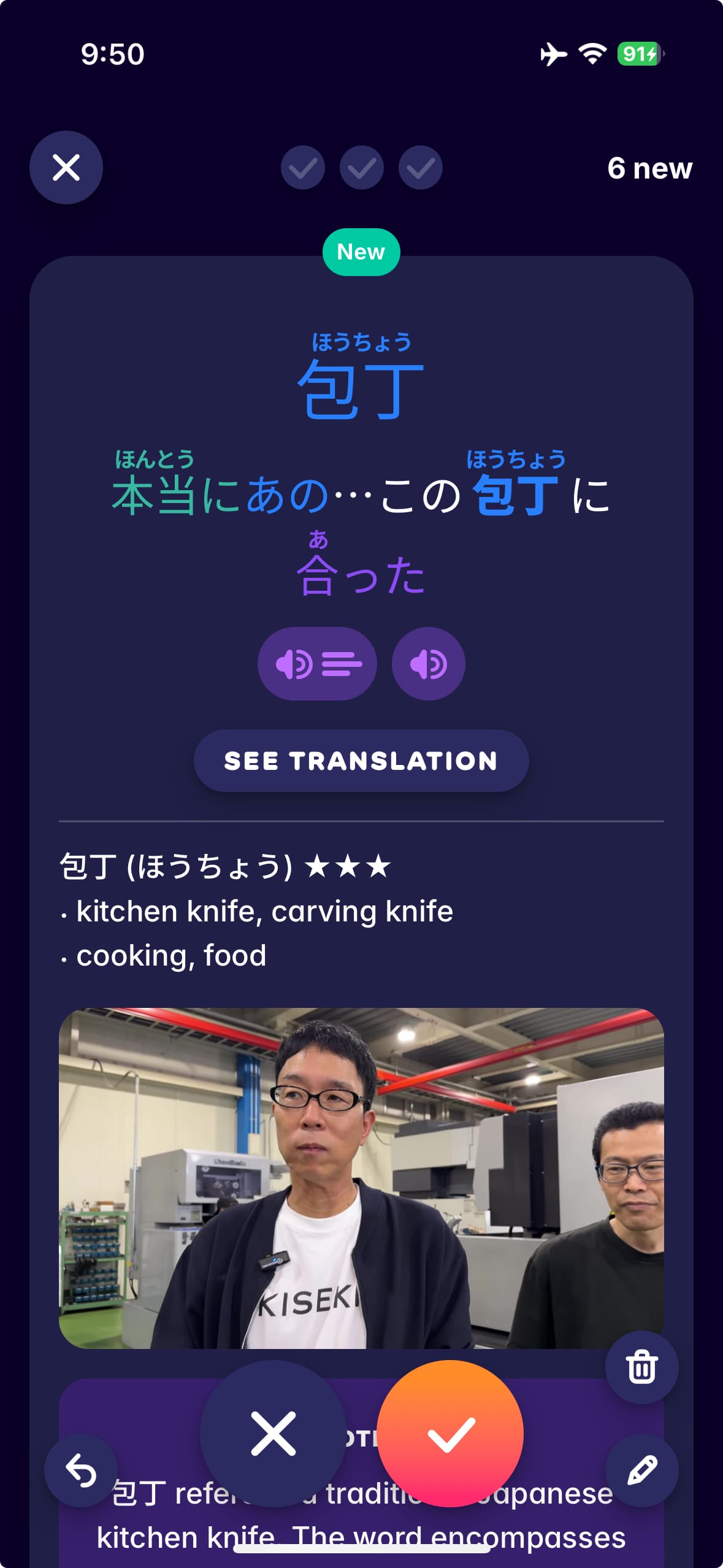
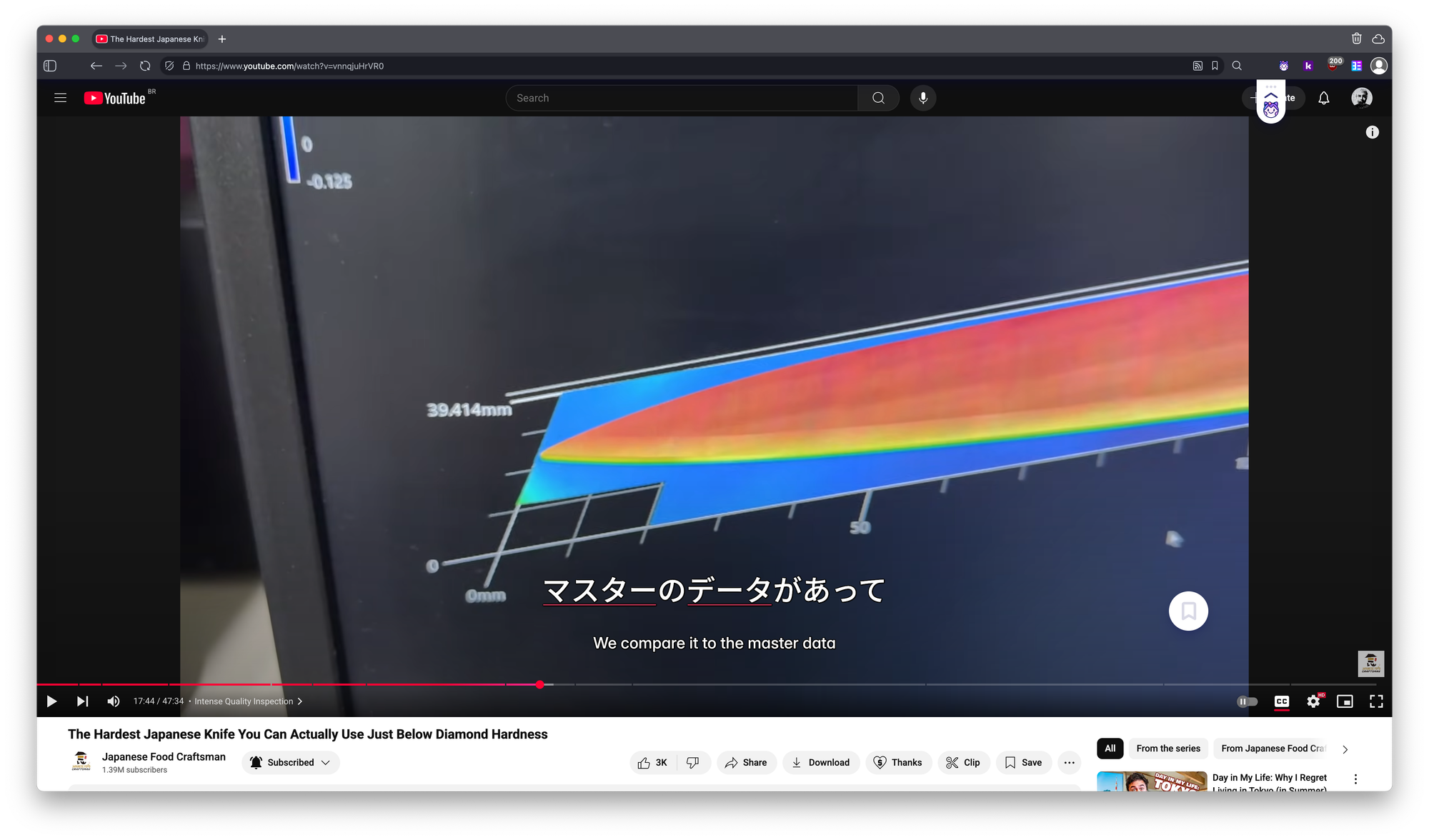
Migaku mobile app, and Migaku with YouTube on the browser
Language Reactor
- Price: freemium
- Works on: YouTube, Netflix, Local videos, Books, Podcasts, you can check its catalogue here.
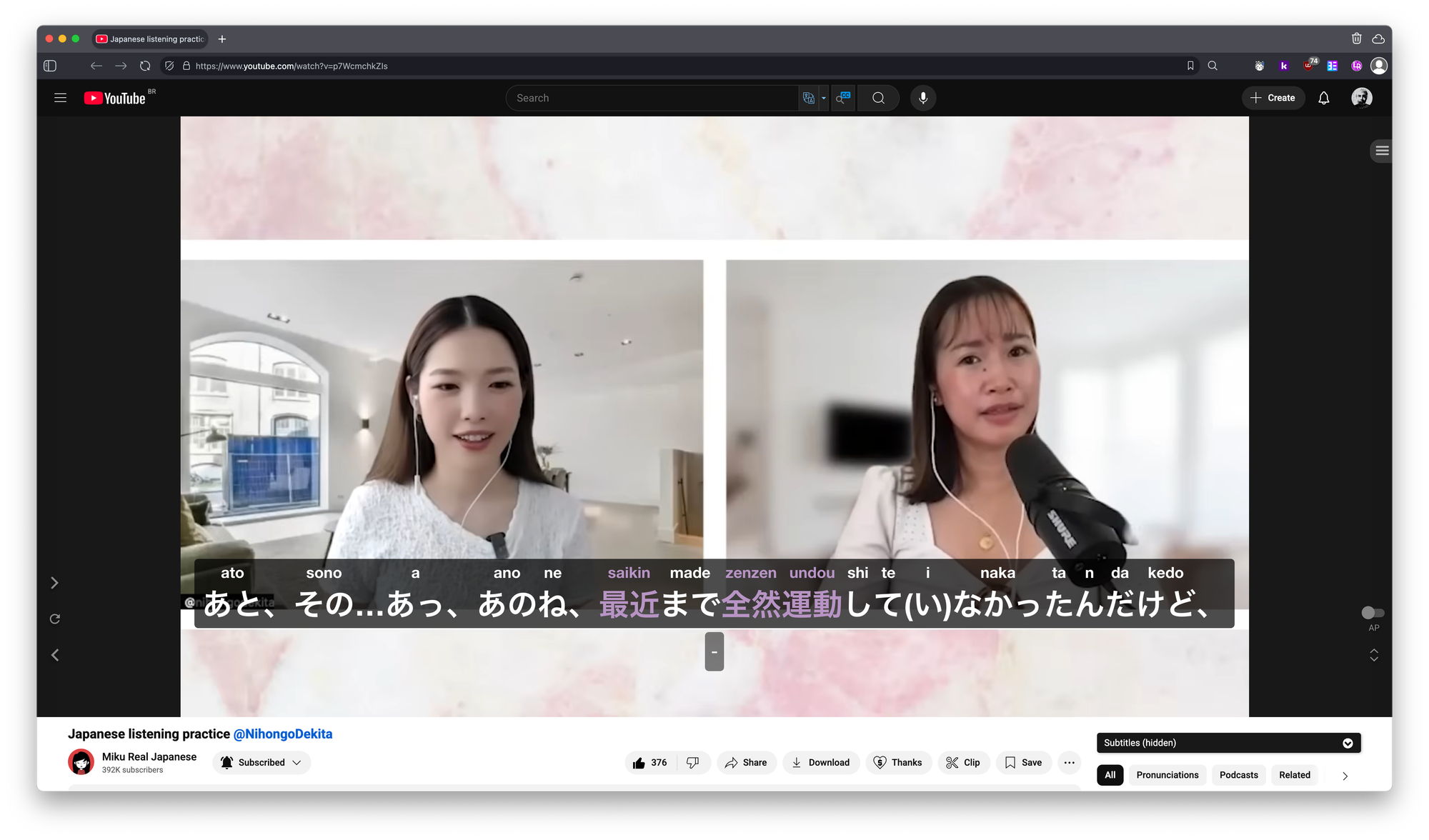
Similar to Migaku, you install its browser extension (which again, unfortunately is just for Chromium-based browser) and start using it.
The free tier of Language Reactor is enough to make it easy for you to copy the sentence, so then you can manually create your own cards on Anki, or wherever else you use to practice via SRS.
I like the fact that hovering over a word it shows you the translation, super handy for that complicated Kanji.
You can easily go back and forth with shortcut keys, such as A to go back and D to go forward. And you can repeat the sentence pressing S.
And you can also export the sentences and words you selected to Anki, for that, make sure to check this guide.
asbplayer
- Price: free
- Works on: YouTube, Netflix, Local videos.
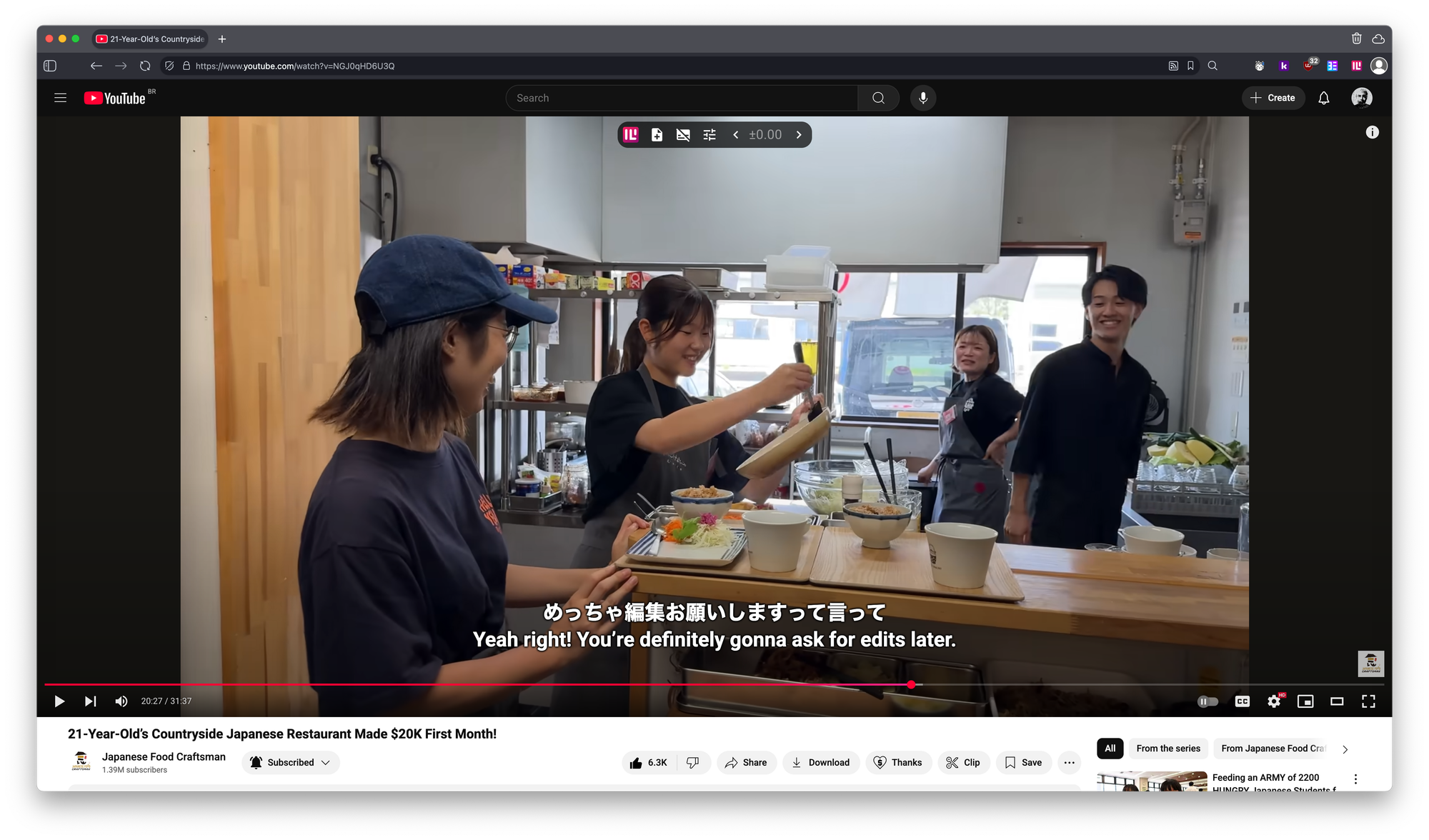
asbplayer is the only real free option on this list, and it works! Well, maybe not as easy as Migaku, but it works, once you set up everything, of course.
asbplayer is a browser-based media player and Chrome extension developed for language learners who learn their target language through subtitled media
asbplayer also has Anki integration, to set up you'll need to:
- Create a new Anki deck, just to keep things organized;
- Install AnkiConnect add-on;
- Open Anki and go to Tools > Add-ons;
- Click "Get Add-ons..." and paste in the code you can find on AkiConnect page linked above, which is
2055492159if you are lazy XD; - Click Ok and that's it;
- You might want to restart Anki just in case;
- After that, open up absplayer extension settings;
- Click on Anki;
- Make sure the Anki Connect URL is working, meaning, it's not showing any error;
- Then select the Anki deck you created before;
- On this same screen, you can configure how your Anki cards will be created. It's super customizable so you might want to spend some time here, and create some test cards to see.
After everything is set, to mine you need to:
- Open your desired video, let's say on YouTube (I didn't test with local videos, but the process should be similar);
- On another tab open asbplayer;
- Select the subtitles available;
- Start the video;
- While watching, pause the video and hover over it, then click "Mine", which is the second button from left to right and wait the card be created;
Bonus
Since absplayer allows you to easily copy the subtitles by selecting them, like any other text on The Web, you might want to also install Yomitan to make this setup even better. 😄
I hope this was helpful some way!
頑張って!